Get started
Add a website
Add a website to your Revfaro workspace and choose its domain, name, timezone and revenue currency, which decide what is recorded and how it is reported.
In short
Each website in Revfaro is one domain plus all of its subdomains. The domain decides which pages are recorded, the timezone decides where your days start and end, and the revenue currency is the currency your revenue is shown in. You can change all of them later in the website's General settings.
On this page
Only workspace owners and admins can add websites. How many websites you can add depends on your plan.
Open Your websites
Sign in. The first page, Your websites, lists every website in the workspace. You can also get there from any dashboard: click the website name in the top-left corner and choose All websites.
Click Add website
Fill in the four fields of the Add a website dialog (each is explained below), then click Add website.
Install the script
Revfaro opens the new website's Setup tab with the script, your website ID filled in. Continue with Install the tracking script.
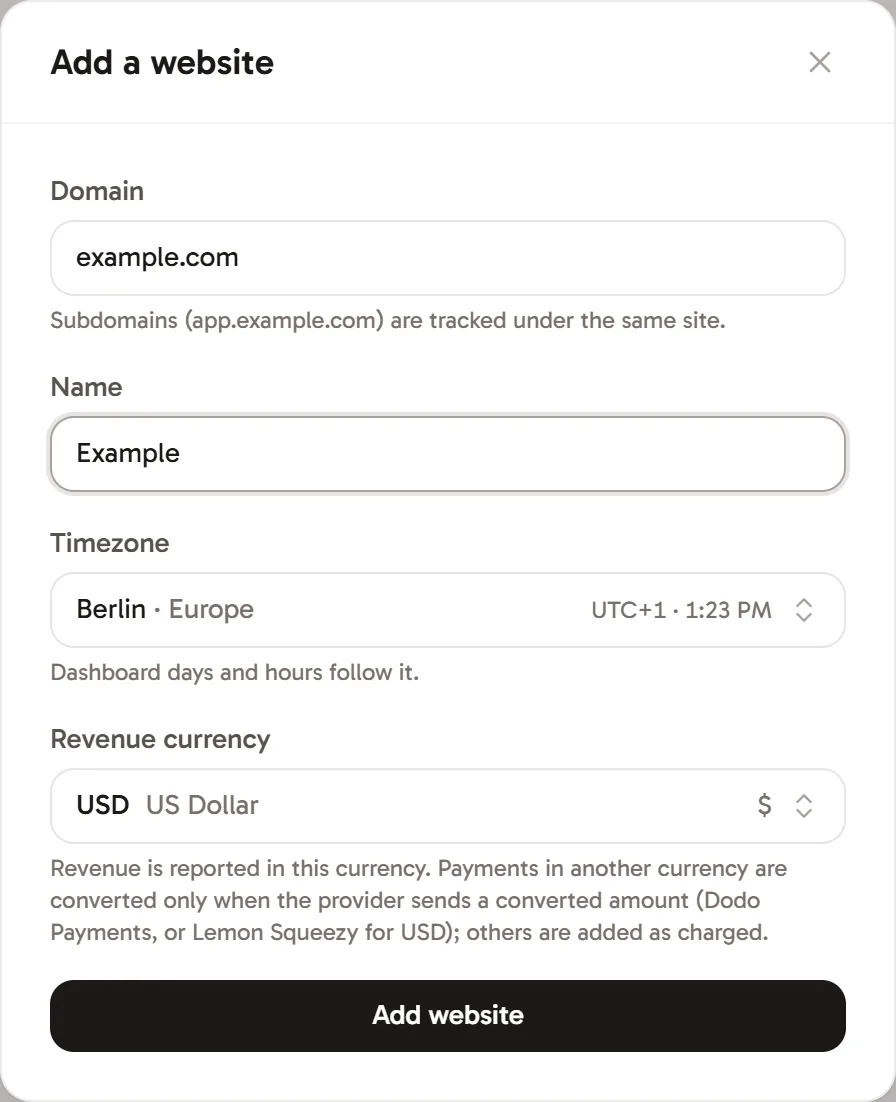
Domain
Enter your domain, for example example.com. If you paste a full address such as https://www.example.com/pricing, Revfaro keeps just example.com.
- Subdomains are included.
www.example.com,app.example.comandblog.example.comare all recorded underexample.com, andwww.is ignored. - Other domains are refused. Pages on any other domain, including
localhostand preview URLs on other domains, are not recorded. This stops anyone from adding fake visits to your statistics by copying your script. - Staging sites on a subdomain of your domain are recorded. Leave them out with a hostname exclusion.
Name
How the website appears in your dashboard, the website switcher and emails, for example Acme or Acme docs. Leave it empty to use the domain.
Timezone
Dashboard days and hours, and the weekly email report, follow this timezone. Revfaro suggests your browser's timezone; open the list and type a city or region (for example Berlin or New York) to pick another. Choose the one your business runs on, so "today" in the dashboard matches your day.
Revenue currency
The currency your revenue is shown in, such as USD or EUR. Open the list and search by code or name, and pick the currency you sell in.
Change or delete a website
Open the website's settings (click the website name at the top of its dashboard, then Site settings & install) and go to the General tab. Change the name, domain, timezone or revenue currency and click Save changes. Changing the revenue currency asks you to confirm: payments already recorded keep their amounts and are not converted, so past revenue is read in the new currency.
To delete a website and all of its data, use Delete site and all data at the bottom of the General tab and type the domain to confirm. Visits, events, payments and funnels are deleted permanently.
Reached your website limit?
If you see "Your plan's website limit has been reached", the workspace already has as many websites as its plan allows. An owner can upgrade under Plan & billing. See Plans, billing and usage limits.
Frequently asked questions
Should I add my app subdomain as a separate website?
Usually not. app.example.com and example.com belong to the same website, and visitors are recognized across both, so a journey from your marketing site into your app stays in one place.
Can I track two different domains as one website?
No. Revfaro only records pages on the website's domain and its subdomains. Add each domain as its own website; visitors moving between them count as different visitors.
Does Revfaro convert payments into my revenue currency?
No. Revenue is shown in the website's revenue currency without exchange-rate conversion, so charge in that currency where you can. Dodo Payments settlement amounts and Lemon Squeezy USD amounts are used when they match it.