Get started
Install the tracking script
Add the Revfaro script to your website with plain HTML, Next.js, React, Vue, WordPress, Webflow, Framer, Shopify or Google Tag Manager.
In short
Paste one <script> tag with your website ID into the <head> of every page. It records page views (including single-page app navigation), sources, campaigns, outbound clicks and engaged time on its own, and is about 6 KB compressed. Copy the exact tag from your website's Setup tab, or let your coding assistant install it with Copy AI prompt.
On this page
The script
Prefer a package in your JavaScript or TypeScript app? See the JavaScript SDK guide. The script remains available without npm or a build tool. Choose one installation method per page.
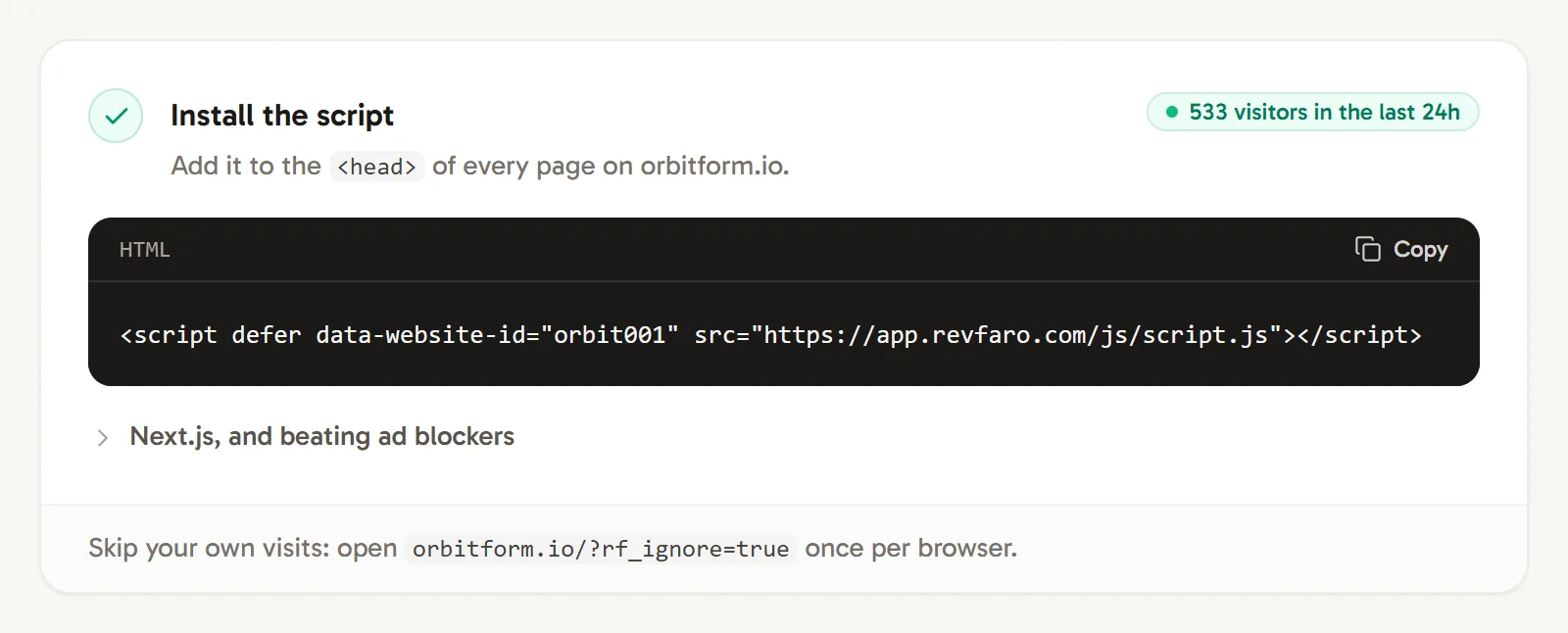
Every website has its own snippet. Open the website's Setup tab and copy it from Install the script: it already contains your website ID.
<script defer data-website-id="YOUR_SITE_ID" src="https://revfaro.com/js/script.js"></script>Put it inside the <head> of every page, including your signed-in app and any subdomains. Load it once per page.
Install it on your platform
HTML
Paste the snippet before </head> in every HTML page or in your shared layout or template.
<!doctype html>
<html>
  <head>
    <meta charset="utf-8" />
    <title>My site</title>
    <script defer data-website-id="YOUR_SITE_ID" src="https://revfaro.com/js/script.js"></script>
  </head>
  <body>
    …
  </body>
</html>
Next.js
Use next/script in your root layout (App Router) or in pages/_app (Pages Router). Client-side navigation is tracked automatically.
import Script from 'next/script';

export default function RootLayout({ children }: { children: React.ReactNode }) {
  return (
    <html lang="en">
      <body>
        {children}
        <Script defer data-website-id="YOUR_SITE_ID" src="https://revfaro.com/js/script.js" strategy="afterInteractive" />
      </body>
    </html>
  );
}import Script from 'next/script';
import type { AppProps } from 'next/app';
export default function App({ Component, pageProps }: AppProps) {
return (
<>
<Script defer data-website-id="YOUR_SITE_ID" src="https://revfaro.com/js/script.js" strategy="afterInteractive" />
<Component {...pageProps} />
</>
);
}React / Vue
For apps built with Vite, Create React App, Vue CLI, Astro, SvelteKit or similar, add the snippet to the <head> of the HTML template that every page uses (index.html for Vite). Route changes in React Router, Vue Router and other routers are recorded automatically.
<head>
  <meta charset="UTF-8" />
  <script defer data-website-id="YOUR_SITE_ID" src="https://revfaro.com/js/script.js"></script>
</head>
WordPress
- Install a plugin that adds code to your site's header, such as WPCode (Insert Headers and Footers).
- Open the plugin's Header & Footer screen and paste the snippet into the Header box.
- Save. The script now loads on every page of your site.
Comfortable editing your theme? You can also paste the snippet into your child theme's header.php, just before </head>.
Webflow
- In Webflow, open Site settings and go to Custom code.
- Paste the snippet into Head code.
- Click Save changes, then Publish your site. Custom code runs on the published site, not in the Designer preview.
Framer
- In Framer, open Site Settings and go to General.
- Under Custom Code, paste the snippet into End of
<head>tag. - Publish your site.
Shopify
- In Shopify admin, go to Online Store › Themes.
- Next to your current theme, open the ⋯ menu and choose Edit code.
- Open
layout/theme.liquidand paste the snippet just before</head>. - Click Save.
The website's domain in Revfaro must be your store's domain (for example shop.example.com or example.com). Visits to the myshopify.com address are not recorded, and Shopify's checkout pages don't load theme code. Revfaro has no Shopify payment integration: to see Shopify orders as revenue, send them from your server with the Payments API.
Google Tag Manager
- In Tag Manager, go to Tags › New and choose Custom HTML as the tag type.
- Paste the code below and replace
YOUR_SITE_ID. It creates the script element itself, so thedata-website-idattribute is kept however Tag Manager inserts custom HTML. - Under Triggering, choose All Pages.
- Save the tag, then Submit and publish the container.
<script>
  (function () {
    var s = document.createElement('script');
    s.defer = true;
    s.src = 'https://revfaro.com/js/script.js';
    s.setAttribute('data-website-id', 'YOUR_SITE_ID');
    document.head.appendChild(s);
  })();
</script>
Let your coding assistant install it
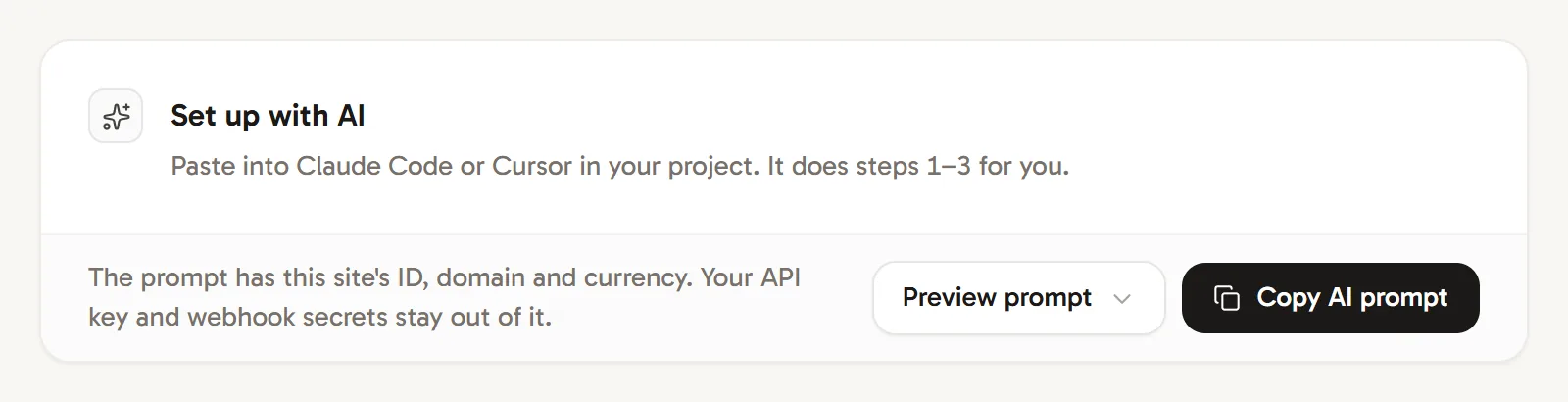
The Setup tab starts with Set up with AI. Click Copy AI prompt and paste it into Claude Code, Cursor or another coding assistant inside your project. The prompt contains your website ID, domain and currency (never your API key or webhook secrets) and asks the assistant to install the script, pass the visitor to your checkout, identify signed-in users and track your main buttons as goals. Click Preview prompt to read it first.
What the script records
Once installed, the script records these on its own:
- Page views, including navigation in single-page apps (it follows
history.pushStateand the back button). - Where each visit came from: the referring site, and
utm_source,utm_medium,utm_campaign,utm_term,utm_contentandreftags on your links. See Tag links and campaigns. - Outbound clicks on links to other websites.
- Engaged time, measured only while the tab is visible.
- Checkout links to Dodo Payments, Stripe Payment Links, Lemon Squeezy and Polar are tagged with the visitor, so payments can be credited. See Revenue attribution.
It never sends personal data found in your page addresses: query parameters such as email, name, phone, token, code and key are removed in the browser before anything is sent.
Script options
| Attribute | What it does |
|---|---|
data-website-id |
Required. Your website ID. |
data-api |
Sends events to another address, such as a path on your own domain. Used for proxying the script. |
data-domain |
Your root domain, such as example.com. Links to this domain and its subdomains are not counted as outbound clicks, and the standard script stores its cookie there. Revfaro detects it automatically; set it if your site lives on a shared host such as name.vercel.app (especially with the cookieless script), or if your cookies end up on the wrong domain. |
Call Revfaro before the script has loaded
The script exposes window.revfaro(...) for goals and identify. If your code may run before the script has loaded, add this line first; calls made in the meantime are queued and sent once it loads:
<script>
  window.revfaro =
    window.revfaro ||
    function () {
      (window.revfaro.q = window.revfaro.q || []).push(arguments);
    };
</script>
Using a Content Security Policy?
If your site sends a Content-Security-Policy header, allow Revfaro in script-src (to load the script) and in connect-src (to send events):
script-src 'self' https://revfaro.com;
connect-src 'self' https://revfaro.com;
Next steps
Verify your installation, then connect your payment provider.
Frequently asked questions
Where do I find my website ID?
In the website's Setup tab, inside the script under Install the script. It is also the part after /site/ in your dashboard's address.
Does the Revfaro script slow down my website?
It loads with defer so downloading it does not block HTML parsing. The script is about 6 KB compressed, and events are sent in the background.
Does the script track single-page apps?
Yes. Navigation in Next.js, React Router, Vue Router and other single-page apps is recorded automatically. You don't need to send page views yourself.
Can I use Revfaro with Google Tag Manager?
Yes. Add a Custom HTML tag that loads the script on all pages. Loading it directly in your site's <head> is still the most reliable option, because some ad blockers block Tag Manager itself.