Features
Goal alerts
Get an email when visitors complete a goal on your website, with who they are, where they came from and what they did, sent to the teammates you choose.
In short
Under Website settings › Alerts, create an alert for a goal such as signup or demo_request and choose which workspace members get it. About a minute after someone completes the goal, they receive an email with the visitor, their location, device, source, campaign, page and the goal's properties. Completions within 5 minutes are grouped into one email.
On this page
Create an alert
Open the Alerts tab
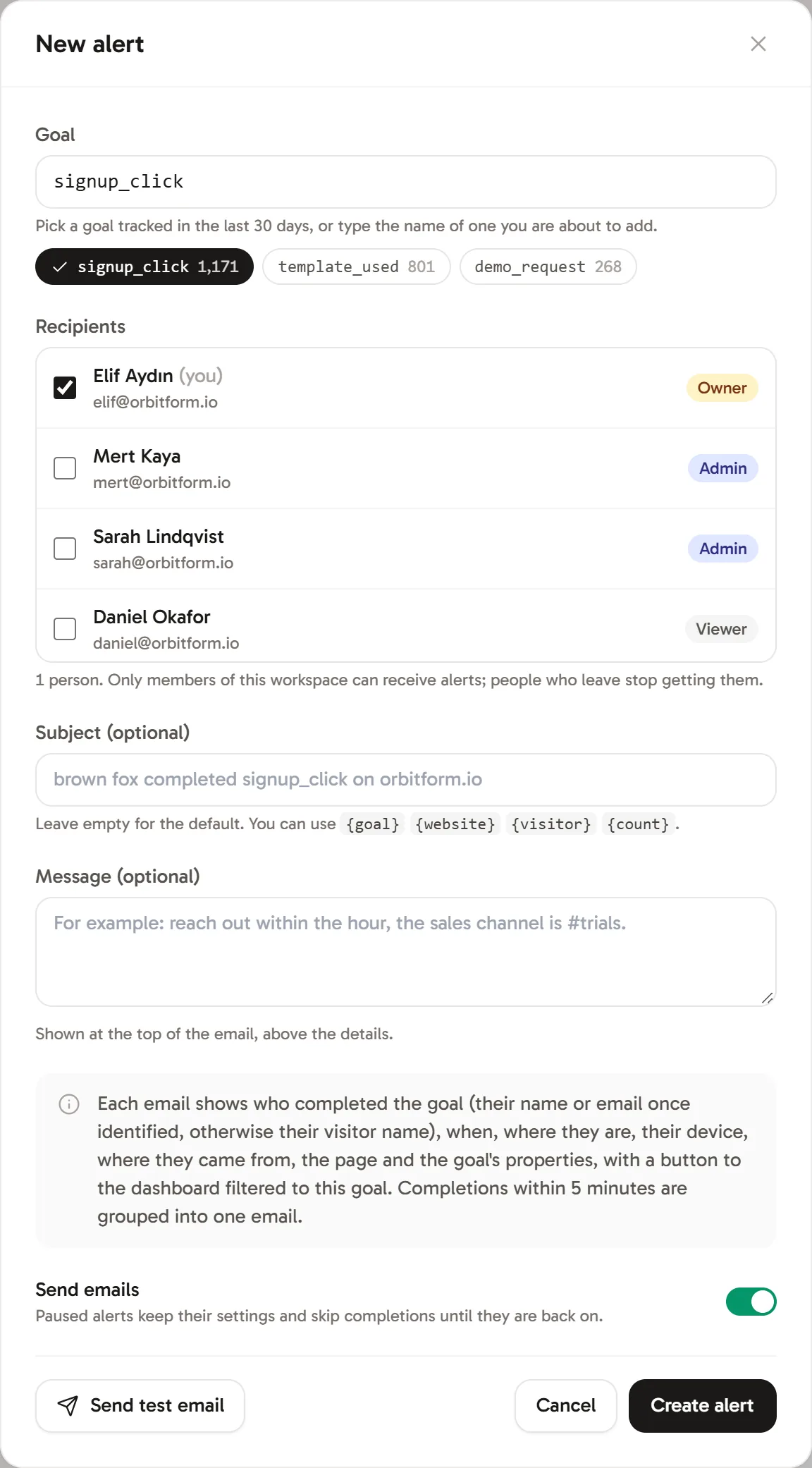
Open Website settings › Alerts and click New alert (or Create your first alert).
Choose the goal
Type the goal's name or pick one of the goals tracked in the last 30 days. You can also enter a goal you are about to add; the alert starts working with its first completion. See Track goals.
Choose the recipients
Tick the workspace members who should get the email. You are selected by default.
Add a subject or message (optional)
Leave Subject (optional) empty for the default, or write your own with placeholders:
{goal},{website},{visitor}and{count}. Message (optional) appears at the top of the email, for example "Reach out within the hour."Send a test and create it
Click Send test email to see what recipients get, then Create alert.
What the email contains
Each email shows who completed the goal (their name or email once identified, otherwise their visitor nickname), when, where they are, their device, where they came from (source and campaign), the page, and the goal's properties. View in dashboard opens the dashboard filtered to that goal, and every email has an unsubscribe link.
Manage alerts
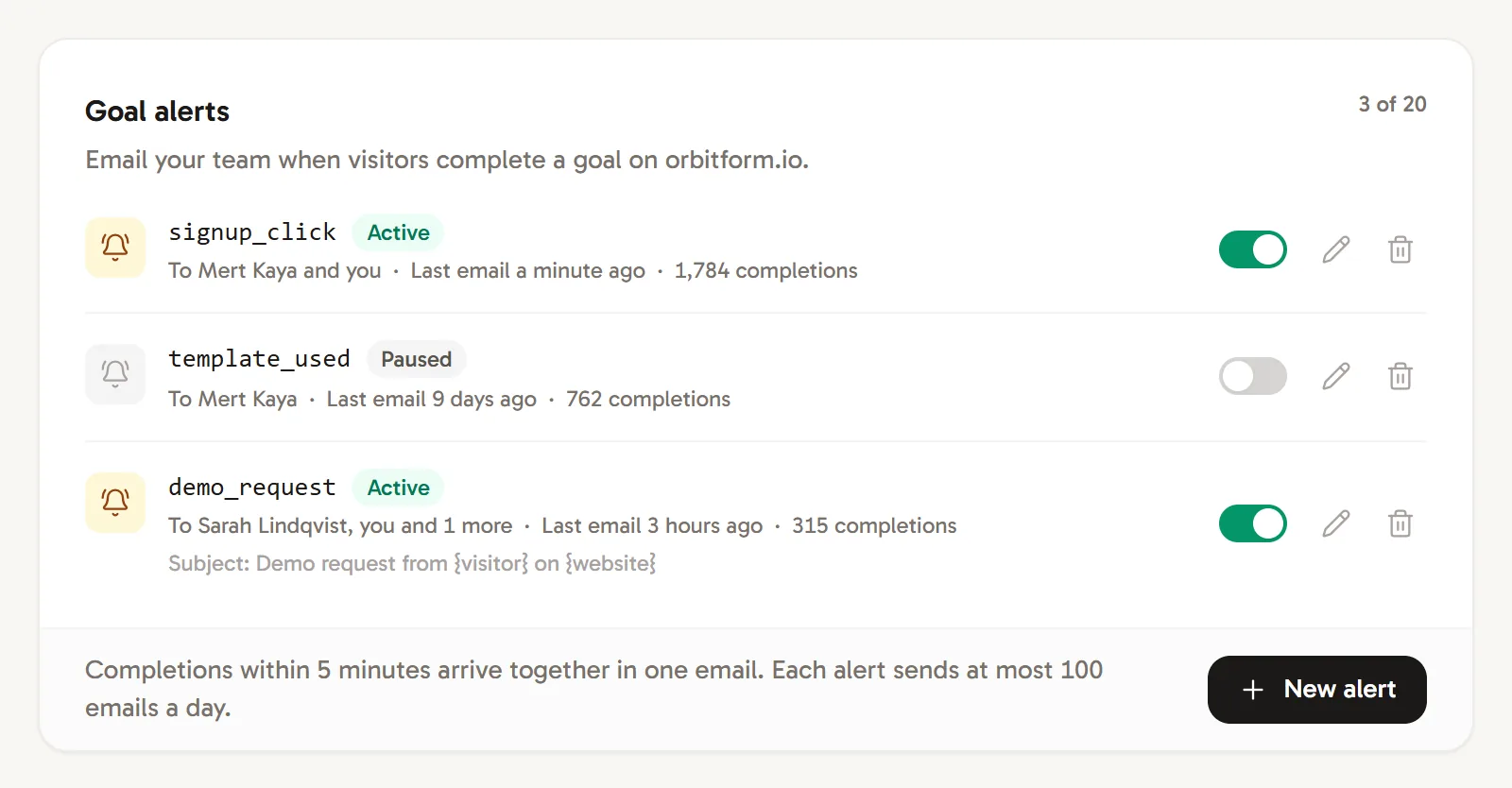
- The switch next to an alert pauses it; a paused alert keeps its settings and skips completions until you turn it back on.
- Edit or delete an alert with the buttons on its row.
- Recent deliveries lists what each alert sent and to whom, newest first. The last 50 deliveries per alert are kept.
Limits
- Up to 20 alerts per website.
- Completions within 5 minutes are grouped into one email.
- Each alert sends at most 100 emails a day.
- No alerts are sent while the workspace's plan is inactive or its monthly events are used up.
- Workspace owners, admins and website managers can create, change or delete alerts.
Recipients must have access to this website. Access is checked again before a queued alert is sent, so removing website access also stops its alert emails. Read-only viewers cannot see the workspace member directory or recipient email addresses in alert history.
Frequently asked questions
How fast do goal alerts arrive?
Usually within a minute. Completions within 5 minutes of each other arrive together in one email.
Can alerts go to Slack or a webhook?
Goal alerts are sent by email to members of your workspace.
Who can receive alerts?
Members of the workspace with a confirmed email address. People who leave the workspace stop getting them.